What it does
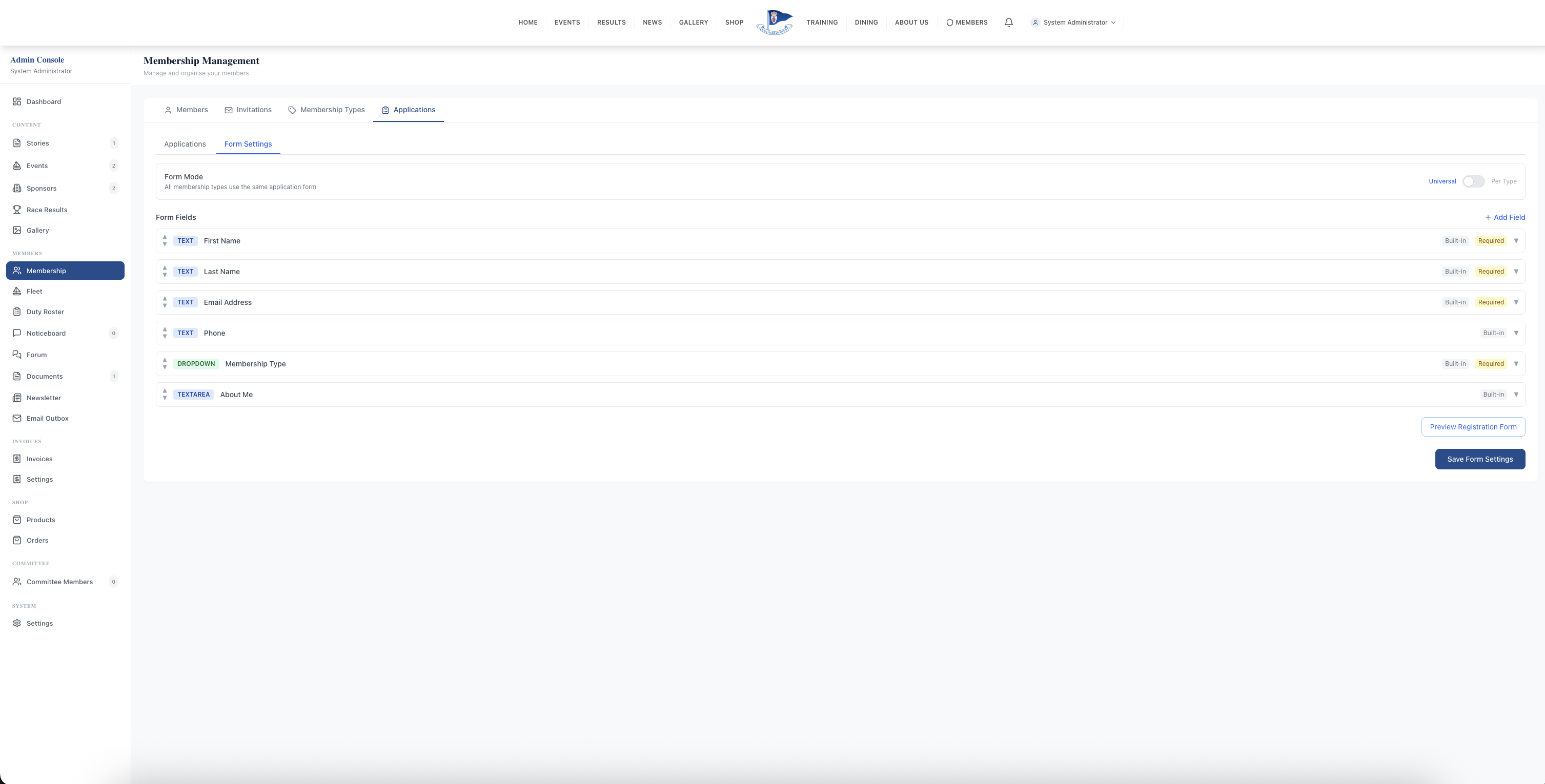
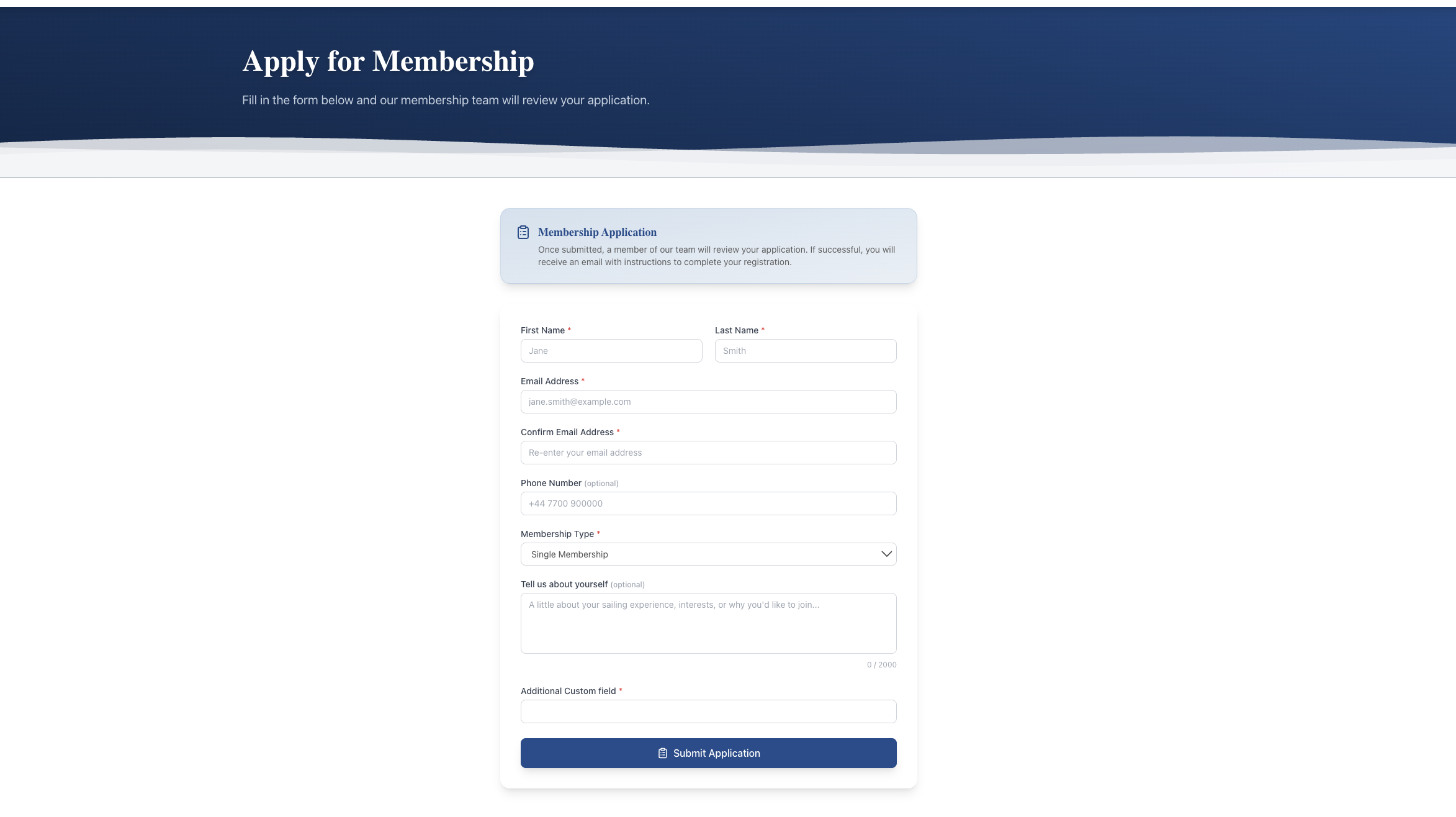
Custom Application Forms lets administrators design the questions prospective members answer when they apply to join. The form builder in the admin panel takes fields in different types — text input, multi-line text, date, dropdown, radio buttons, checkbox, file upload — each with a label, required/optional toggle, configurable placeholder text, and reordering by moving fields up or down. Typical fields a club configures: proposer and seconder names, sailing background, boat class, VHF licence (with the certificate uploaded as proof), and — for juniors — parent or guardian details. A live preview shows the form exactly as applicants will see it.
The form runs in one of two modes: Universal (one form for every membership type) or Per-Type (different questions depending on whether the applicant selects Full, Junior, Family, or another type). On the public Join page, the correct form loads dynamically based on the membership type chosen. Submitted responses store against the application record and appear in the admin Applications panel alongside name, email, and chosen type, ready for the secretary to review.
What sells it
- Seven field types — text, multi-line text, date, dropdown, radio buttons, checkbox, file upload — cover every question a committee actually needs to ask
- Per-membership-type forms — Junior applicants get parent/guardian fields, Full members don't; the right form loads automatically when the type is selected
- File upload field — applicants attach proof of qualifications, proposer letters, or VHF licences directly to the application
- Live preview in the builder so the secretary sees exactly what the applicant will see before publishing
- Required / optional toggle and placeholder hint text per field — guide applicants on what you expect
- Drag-style reordering by moving fields up or down — restructure the form without rebuilding
- Responses on the application record — every custom answer appears in the admin Applications view alongside the standard fields
Why this matters
Every club has questions a generic form cannot anticipate — proposer and seconder names, sailing background, boat class, VHF licence. Collecting this by email after an application is submitted adds a round trip of correspondence per applicant and produces incomplete committee files. Asking the right questions at the point of application means the secretary has everything to put the case to the committee without chasing.
Frequently asked questions
See related features: Member Management · Event Management · back to Club Management Software.