Get Yacht Clubs Manager running at your club. Book a 20-minute walkthrough.
If you have volunteered as communications officer, you have probably discovered that the hard part of a club newsletter is not the writing. It is gathering everything together, keeping the mailing list current, and knowing whether it actually reached anyone. This guide covers how to put together a sailing club newsletter in Yacht Clubs Manager from content the club has already published, who receives it, how members' choices are respected, and how to check what happened after you pressed send.
Build from what is already on the website
The newsletter is not a separate document you write from scratch. It is assembled from three things the club already has:
- News stories from the public website: race reports, working party dates, the commodore's update.
- Noticeboard items from the members area: boats for sale, crew wanted, lost property.
- Member documents: new sailing instructions, AGM minutes, the updated club handbook.
This changes the routine in a useful way. Instead of writing everything twice, you encourage the committee to publish news on the website as it happens, and once a month you collect the best of it into an email. If you are new to the news editor, see news and content.
Putting a newsletter together
In the admin console, open Newsletter and start a new one. The Send Newsletter window works from top to bottom:
- Recipients. "Send to all active members" is ticked by default. Untick it to pick individual members from a searchable list, with select all and deselect all.
- Email subject. Required, up to 200 characters. Something specific beats "Newsletter": "Lift-out dates, new sailing instructions and the prize-giving" tells members why to open it.
- Introduction message. Optional, up to 3,000 characters. This is your voice at the top of the email. Simple formatting works: bold, italic, headings, lists and links.
- Content. Expand News Stories, Noticeboard Items and Member Documents and tick what to include. You need at least one item.
- Preview, then Send Newsletter.
The email is built in the club's colours with the logo at the top. Each news story has a "Read Full Story" link back to the website, noticeboard items appear in the email itself, and documents are listed with a button to sign in to the members area. Documents stay in the members area, so members sign in to open them. That is deliberate: private club papers are not attached to an email that could be forwarded anywhere.
Sending happens in the background. You get a message saying how many members it is going to and can close the window straight away. Past newsletters are listed under Newsletter History in the admin console, with the content each one included, so your successor can see what has already gone out.
Who it goes to, and who it does not
"All active members" means exactly that: members whose membership is active. Lapsed members and pending invitations are not included, so there is no separate mailing list to keep in step with the membership list.
You can send to everyone or to members you choose by hand. There is no built-in filter by membership type, so if you want to write only to, say, junior parents, tick those members individually or search for them by name.
Members control whether they receive club communications. In their notification settings they can switch off club communications and newsletters (and, separately, duty emails). Anyone who has opted out is skipped automatically, and every newsletter carries a footer link to those settings. Essential emails such as invoices and membership invitations are not affected by this setting. Members can find the setting described in keeping your club profile up to date.
One-off emails with attachments
Not everything is a newsletter. For a quick message, such as a change to Saturday's start time or a printable programme for the regatta, go to Membership and use Email Members.
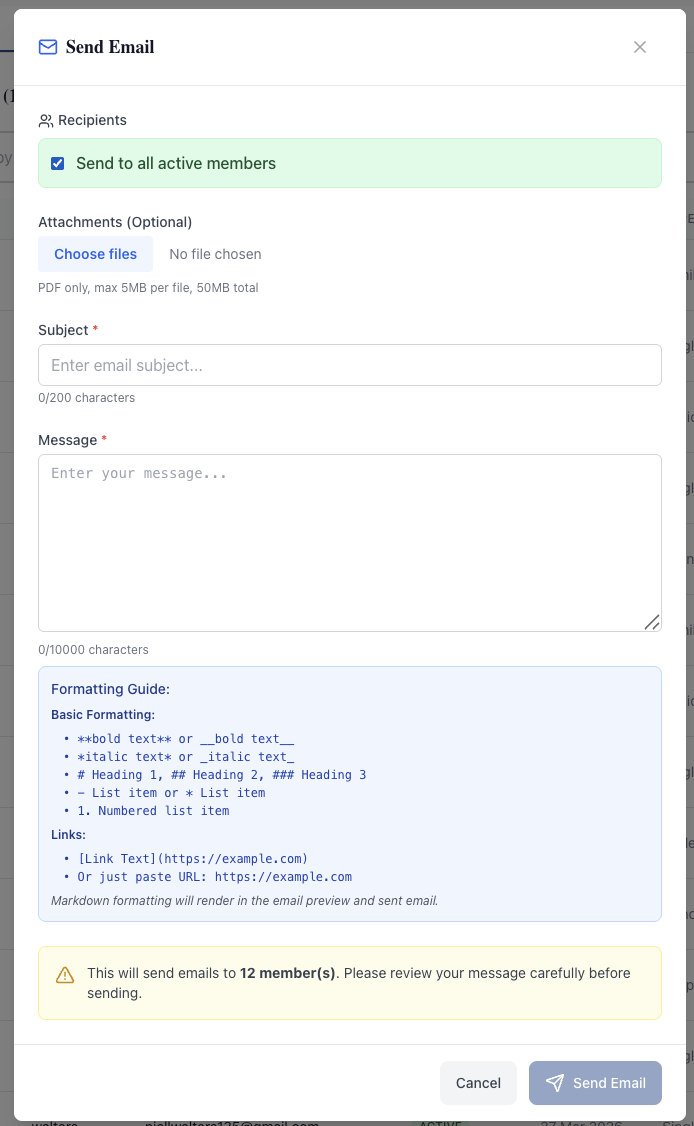
It has the same recipient choice as the newsletter (all active members, or members you pick), a subject and a message with the same simple formatting. You can attach PDFs, up to 5MB each and 50MB in total. Before sending to more than a handful of people, you are shown how many members it will reach and asked to confirm. Opt-outs are respected here too.
Checking what happened: the Email Outbox
Email Outbox lists every email the platform sends, not only yours: newsletters and one-off emails sit alongside invitations, invoices, payment receipts, duty assignments and swap requests. You can search, and filter by type, by status (sent, partial or failed) and by date.
Open a newsletter to see each recipient and their status: sent, pending, failed or bounced. When there are failures or bounces, you can filter the list to just those, and any error message is shown next to the person. This is also how you answer "I never got it": search for the member and see whether the email went and what happened to it.
What to do about bounces
A bounce means the receiving mail server rejected the message. For a club, the usual causes are an old work address, a typing mistake when the member signed up, or a full mailbox.
- After each newsletter, filter the recipients to Bounced and note the names.
- Contact those members another way (phone, or a word at the club) and check their address.
- Ask them to update their email in their profile in the members area. Changing an email address sends a verification code to the new address, so a member cannot lock themselves out with a typing mistake.
- If the same member bounces repeatedly, let the membership secretary know. It may be a sign the member has left without telling anyone, which is worth raising before renewals.
Do not keep re-sending to an address that bounces. It does not help the member, and repeated bounces can affect how other mail providers treat the club's emails.
A simple rhythm for the season
- Monthly newsletter, same week each month. Members come to expect it and committee members know when to get their news published.
- One-off emails for anything time-critical, kept short, with the PDF attached if people will want to print it.
- Noticeboard for member-to-member items, pulled into the newsletter rather than emailed individually.
- Outbox check the day after each send, bounces followed up within the week.
Newsletters and member-wide emails are limited to people with full admin access, since they reach the whole membership. If you are taking the role over, ask for access on your own login rather than sharing someone else's; the reasons are in club committee roles and permissions.
Find out more
The communications page covers newsletters, one-off emails and the outbox, and the member noticeboard page explains how members post items you can include.
Like the read? See it running with your club's data — book a demo.