Get Yacht Clubs Manager running at your club. Book a 20-minute walkthrough.
Most club shops start as a box of burgees behind the bar and a list of who wants a polo shirt in which size. It works until someone pays in cash, someone else pays by transfer with no reference, and the order for embroidered jackets has three different spellings of the same boat name. Running a club shop online fixes most of that, as long as the shop fits how clubs actually sell: small ranges, members collecting from the clubhouse, and the odd personalised item.
This guide is for whoever looks after your club's merchandise. It covers how the shop in Yacht Clubs Manager works, from setting up a product to handing it over at the clubhouse. The shop is an option your club switches on; once it is on, it appears on your public website for members and visitors alike.
What the shop is (and isn't)
It is worth being clear about the shape of it before you start. The shop is built for click and collect. Customers order and pay online, and collect from the club when you tell them their order is ready. There is no shipping or courier integration, so it isn't the right tool if you want to post hoodies around the country. For burgees, clothing, stickers, flags, calendars and the like, collected at the club, it fits well.
Setting up a product
Each product has a name, a description, a price and one or more photos. You can mark a product inactive to hide it without deleting it, which is handy for seasonal items, and drag products into the order you want them to appear in.
- Open the shop products screen in the admin console and add a product.
- Enter the name, a short description and the price.
- Upload photos. The first one is the one shown on the shop page.
- If it comes in sizes or colours, turn on variants (see below).
- If it can be personalised, add a personalisation extra (see below).
- If you've run out, tick sold out rather than deleting the product.
Sizes, colours and other variants
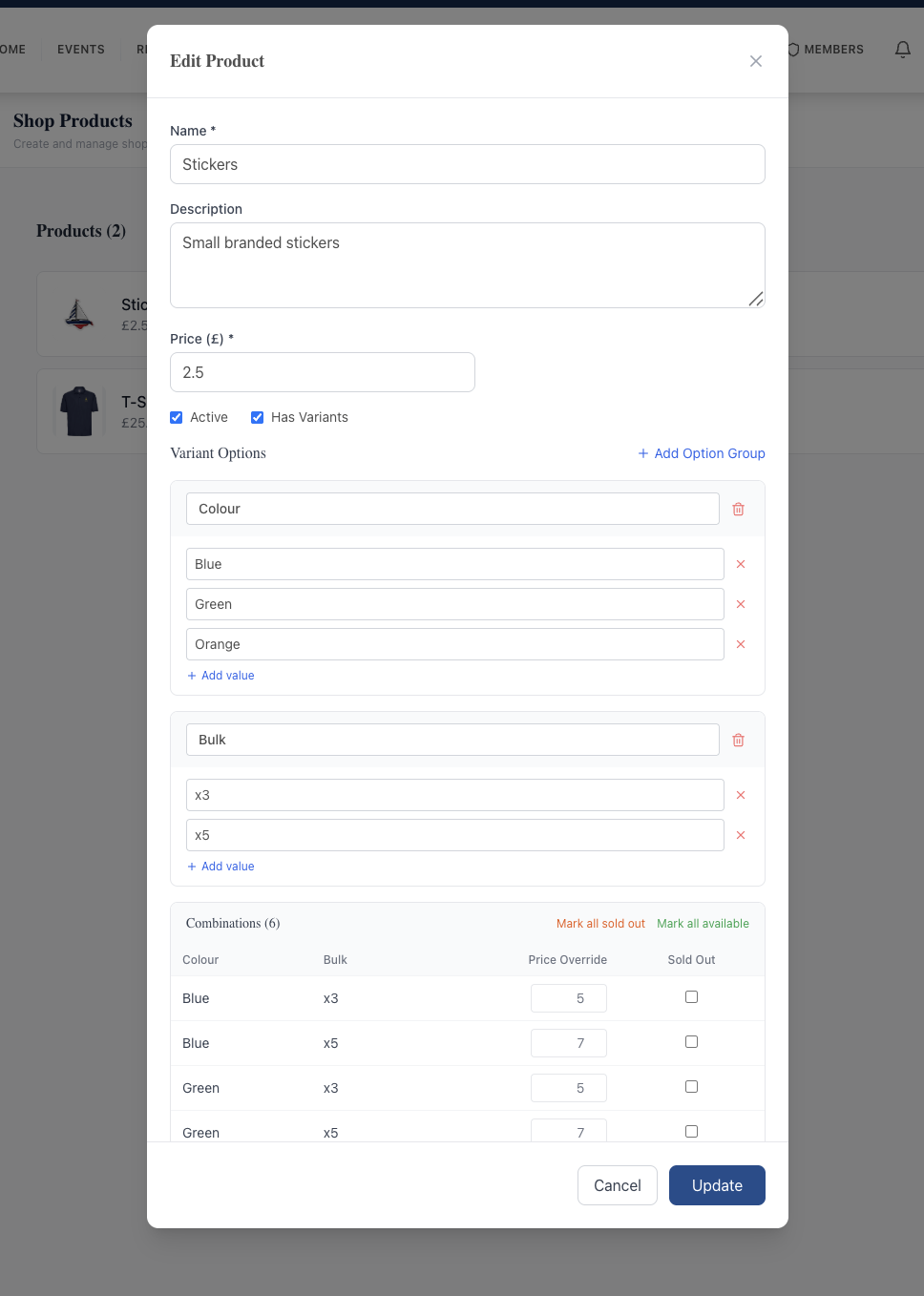
Clothing is where club shops usually get complicated. In the product form you add option groups, such as Size and Colour, and list the values for each. The system then lists every combination (Small / Navy, Small / White, and so on) so you can:
- set a different price for a combination, for example extra-large sizes costing more;
- mark individual combinations as sold out, or use "mark all sold out" and "mark all available" when a batch runs out or arrives.
When a customer picks their options on the product page, anything sold out is labelled as such and can't be chosen, so you won't take an order for a size you no longer have.
Personalisation
Name embroidery on a jacket, a boat name on a mug, a sail number on a cap: these are what make a club shop feel like a club shop, and what tend to go wrong on paper. Each product can have personalisation extras. An extra has a label (for example "Name on back"), optional help text, a price, and a maximum number of characters.
The customer types their text when they add the item to their basket, and it is saved against that line of the order exactly as they typed it. When the order comes in, you have the wording in writing, so there's no need to decipher someone's handwriting on a sign-up sheet.
VAT
If your club is VAT registered, you enter shop prices before VAT. The VAT rate is the one your treasurer sets for shop sales, and customers are shown and charged the price including VAT. Personalisation extras are taxed at the same rate as the product. Every paid order produces an invoice, so the VAT is recorded properly. If your club isn't VAT registered, you don't need to do anything here. Shop sales are recorded under their own revenue category, so they show up separately in your income reports; our Stripe and Xero guide explains how categories map through to the accounts.
How customers order
Customers browse the shop on your club website, choose options and any personalisation, and add items to a basket. At checkout they give their name and email address (a phone number is optional), and they don't need a members area login, so parents, visitors and sponsors can buy too. They pay by card through Stripe, and the money goes to your club's own Stripe account.
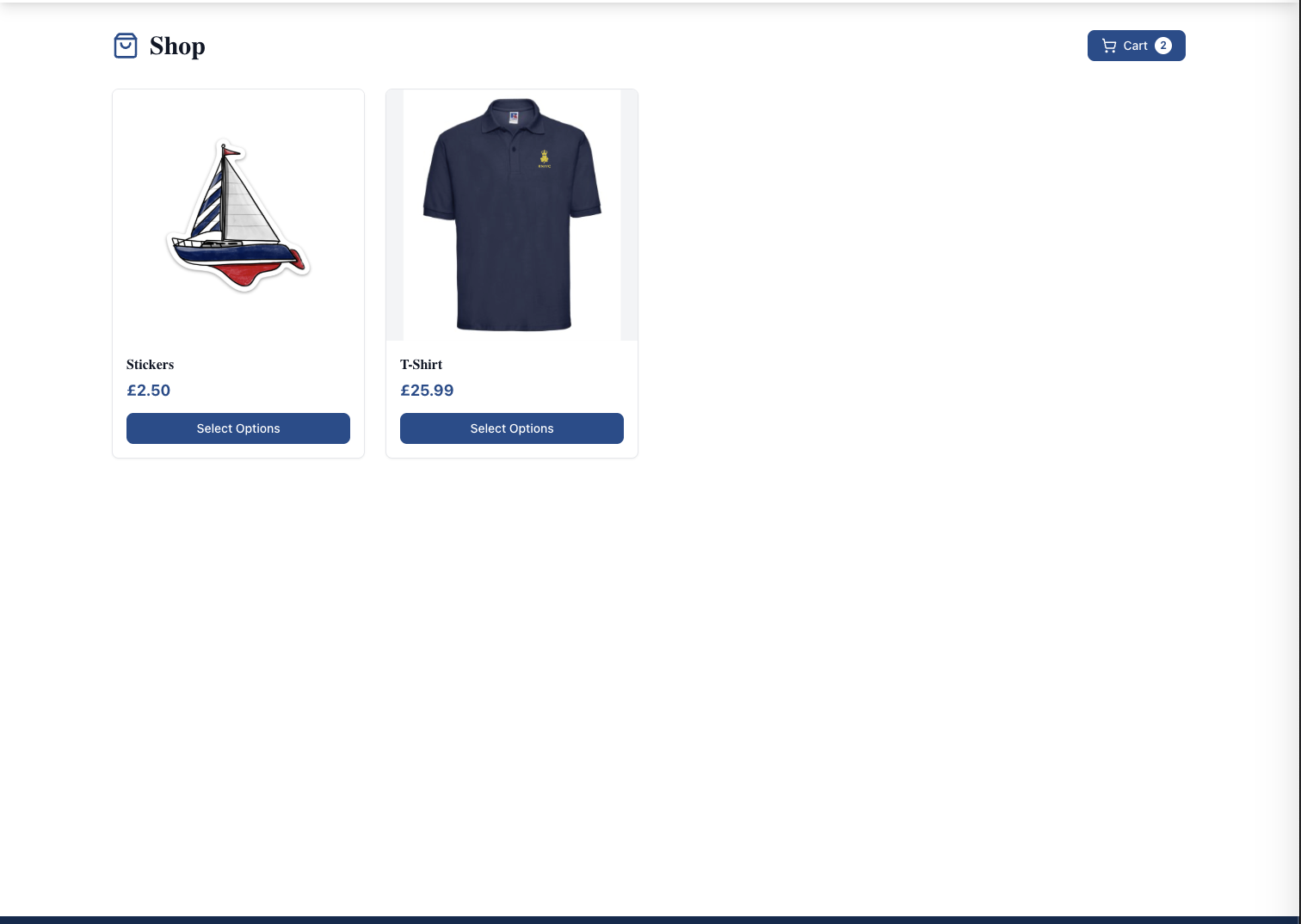
As soon as payment goes through, the customer gets an order confirmation email with their invoice, and your club gets an order notification at the email address you set in the shop settings. Point that at whoever actually packs the orders, not a general inbox nobody checks. If a customer abandons checkout without paying, the unpaid order is cancelled on its own.
If you want to understand the card side in more depth, see taking card payments at a sailing club.
From paid to collected
Each order moves through a short set of statuses, and the orders screen in the admin console shows where every order is:
- Paid. The order is in and paid for. Paid orders also appear on the admin dashboard's to-do list, so they don't get forgotten.
- Ready for collection. When the items are bagged up, mark the order ready. The customer is emailed to say they can collect.
- Collected. Mark it collected when it is handed over, so you know nothing is left waiting behind the bar.
Orders can also be cancelled or refunded. A refund goes back to the customer's card through Stripe, and they are emailed to confirm it. You can refund part of an order (for example, one item that was out of stock after all) and the rest of the order carries on as normal, so it can still be marked ready and collected. A full refund marks the order refunded and takes it out of your revenue figures.
Tips from the shop counter
- Photograph products on a plain background. The shop page shows the first photo, so make it the clearest one.
- Keep descriptions practical: sizing notes, material, and how long made-to-order items take.
- For made-to-order runs, take orders for a set period, then mark the product inactive when you place the order with your supplier.
- Agree with the bar or office where collected orders are kept, and mark orders ready only when they are actually there.
- Give your shop volunteer shop permission only. Your administrators can grant it without giving access to member records or invoices; see committee roles and permissions.
The shop sits alongside your events, news and membership on the same website, so a member can renew, enter a regatta and order a club polo without learning a second system. Read more about the online shop feature, or see how shop sales flow into invoicing and payments.
Like the read? See it running with your club's data — book a demo.