Get Yacht Clubs Manager running at your club. Book a 20-minute walkthrough.
If you are your club's events or regatta secretary, a single open meeting can mean a Notice of Race to publish, Sailing Instructions to circulate, entries and entry fees to collect, a list for the race office, and results to get onto the website afterwards. Each of those steps tends to live in a different place. This guide follows one event from Notice of Race to published results in Yacht Clubs Manager, so you can see where each piece goes and what the system does for you along the way.
To be clear from the start about what it doesn't do: it doesn't score races. You score in whatever program your club already uses, then publish the results on your club website, as described at the end.
1. Create the event and publish the documents
Everything starts with the event in the admin console. The form covers what a competitor needs to know before they decide to enter:
- Give the event a title and a description. The description supports simple formatting, so you can add headings, lists and links.
- Pick a category (racing, social and so on), a start time and a location.
- Choose a single day, or select several dates for a multi-day regatta or a series.
- Upload the Notice of Race and Sailing Instructions as PDFs.
- Add up to four further documents, each with its own label, such as an appendix, a course map or an entry form. These can be PDF, Word or Excel files.
- Add a header image, and link a sponsor if the event has one.
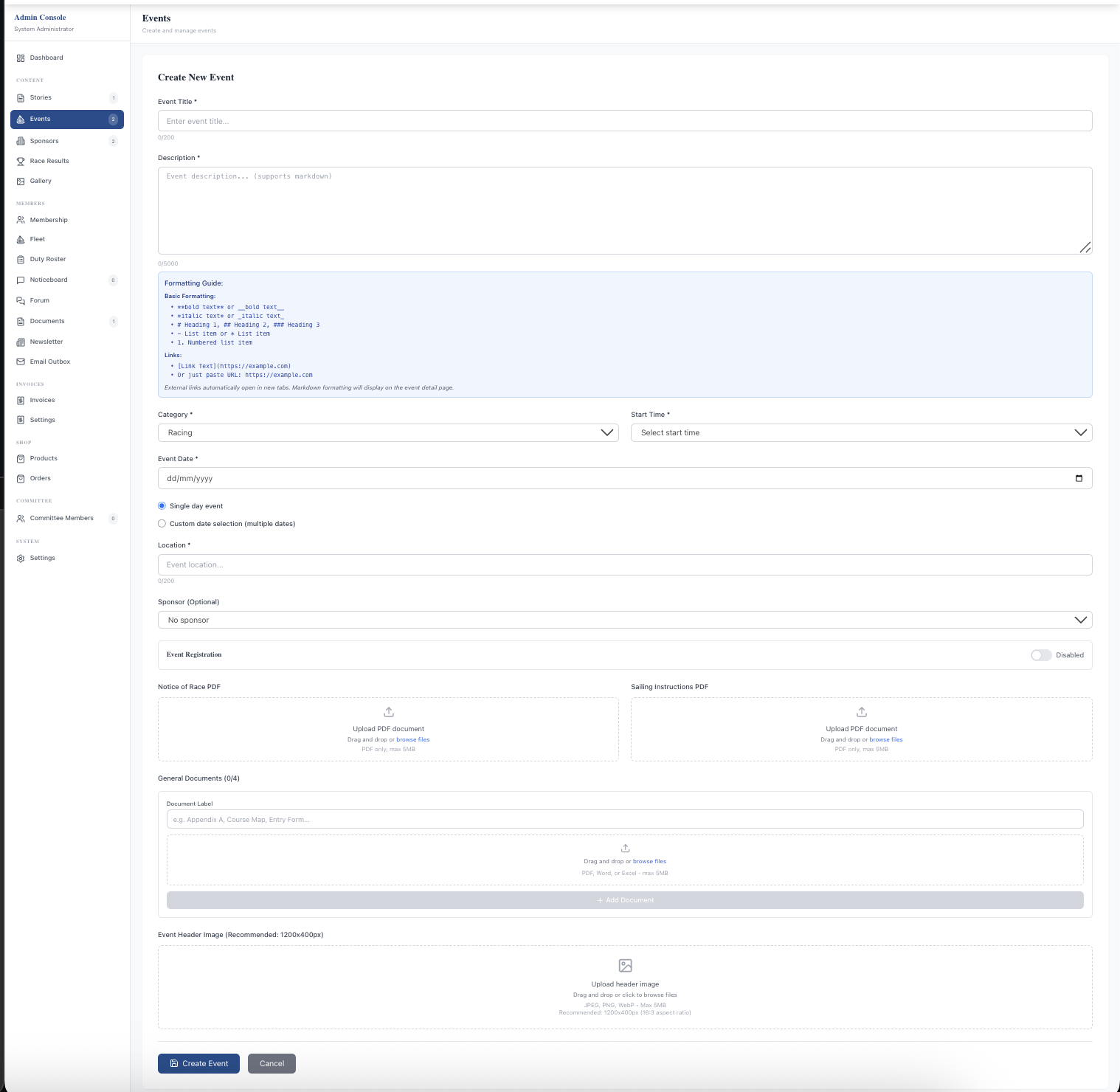
Once saved, the event appears in your website's events calendar with its own page. The Notice of Race and Sailing Instructions sit on that page for anyone to open. If a document is amended, replace the file and the page carries the new version, so you can stop sending PDFs round by email and simply point people to the event page.
2. Open entries
Online entry is an option your club switches on. Once it is on, each event has a registration switch in the same form. Before you take money, two things need to be in place: your club's Stripe account must be connected, and your terms and conditions, including your refund and cancellation policy, must be set in the registration settings. Paid entries aren't allowed without them, and every entrant accepts the terms when they enter.
Then set up how people enter:
- Per person or per boat. For a race, per boat is usually right: the entrant gives the boat name, sail number, class and the skipper or helm. Members can pick one of the boats already on their profile.
- Entry fee tiers. Add as many tiers as you need, such as early bird, standard and junior, each with its own price and optional description. A tier can be open to everyone, members only or guests only, so a members' rate and a visitors' rate can sit side by side.
- Per day or the whole series. On a multi-day event, entrants choose the days they want, and each day closes for entry as it starts. You can also give a tier a whole-series price for people entering every day.
- Capacity. Set a limit on the number of entries, and optionally a limit per tier. On a multi-day event, the limit applies to each day, not the event as a whole.
- Guests. Decide whether people who aren't members can enter without logging in. For a regatta with visiting boats, you will want this on.
If your club is VAT registered, the entry fee form shows how VAT applies to the prices you enter.
3. What entrants experience
Members enter from the event page while logged in, so their name and details are already known. A guest fills in the form and is then emailed a six-digit code to confirm their email address. Nothing is booked until they enter it, which keeps mistyped addresses and made-up entries out of your list.
For a paid entry, the entrant goes to a secure Stripe card payment page. Their place is held for 30 minutes while they pay, so two people can't both take the last space. If they don't finish paying, the place is released for someone else. When payment goes through, the entry is confirmed and an invoice is created, so both you and the treasurer have a proper record of the fee.
The day before the event, everyone with a confirmed entry gets a reminder email. If someone can no longer come, they contact the club, and you cancel the entry for them (see below). For a walk-through written for entrants, see our guide to entering a club event online.
4. Manage the entry list
Entries appear against the event in the admin console as they come in, with each entrant's details, boat, tier and payment. The jobs you are most likely to need:
- Cancel an entry. Choose a full refund, a partial refund of an amount you set, or no refund. On a multi-day entry you can cancel a single day or the whole booking. Refunds go back to the entrant's card through Stripe.
- Drop a day and move entries. If a day is lost (to weather, say, or a clash), you can remove it from the event. Entrants booked on that day can be moved to another day, refunded, or cancelled, and you see a preview of what will happen to each entry before you confirm.
- Export the entry list. Download the entries as a PDF for the race office, the committee boat or the noticeboard.
If you need to check who is on shore duty for the event, that lives in the duty roster, managed separately by your duty co-ordinator.
5. Publish the results
After racing, score the event in your usual scoring program. Then publish the results on your club website's Results page in one of two ways:
- As a link. If your scoring program publishes results to a web page, add a results entry with a name (for example, "Spring Series") and paste the link.
- As a PDF. If you produce a results sheet, upload it as a PDF under a name of your choosing.
Either way, it takes a minute, the results appear on the public Results page, and you can edit the entry later if the standings change. You don't need to email a webmaster or wait for someone with website access. One thing to know when handing out access: events permission covers creating events and managing entries without full admin access, but adding results currently needs an administrator. See committee roles and permissions for how access is shared out.
A regatta secretary's timeline
- Several weeks out: create the event, upload the Notice of Race, and check your Stripe connection and terms.
- When entries open: set up tiers, capacity and guest entry, then switch registration on. Mention the event page in your newsletter.
- A week or so out: upload the Sailing Instructions and any appendices.
- During entries: keep an eye on the entry list and handle cancellations and refunds as they come in.
- The day before: entrants get their reminder; export the entry list PDF for the race office.
- After racing: score as usual, then publish the results as a link or PDF.
Read more about event management and race results, or see how events sit alongside membership and payments in sailing club software.
Like the read? See it running with your club's data — book a demo.