Get Yacht Clubs Manager running at your club. Book a 20-minute walkthrough.
Renewal season lands on the membership secretary and the treasurer at the same time, and it usually arrives faster than anyone expects. This club membership renewal checklist is for the two of you. It is split into what to do before renewal season, what to watch while invoices are out, and what to tidy up afterwards, and it uses the renewal settings that are actually in Yacht Clubs Manager.
One principle runs through all of it: nothing about renewals is automatic until your club switches it on. Drafting invoices, sending them, billing new joiners and deactivating members who don't pay are all separate choices. That means you can start cautiously (review and send everything by hand in your first year) and automate more once you trust the numbers.
Before renewal season: decide how your club renews
Most of the work is here, and most of it only needs doing once. Sit down together, ideally a couple of months before your renewal date, and go through these in the invoice settings.
- Choose when members renew. Either everyone renews on one club-wide date (the default is 1 April, which you can change) or each member renews on the anniversary of the day they joined. A fixed date suits clubs with an AGM-set subscription year; anniversaries spread the treasurer's work across the year. Our post on choosing your renewal settings goes into the trade-offs.
- Check every membership type has a renewal price. Each membership type carries its own renewal price and invoice description. If a type has no price, members on it won't get a renewal draft, so check the full list, including the ones nobody remembers, such as honorary or outport.
- Decide who is set to renew. Each member has an auto-renew setting. For members with it on, next year's invoice is prepared as a draft ahead of their renewal date. You can set a club-wide default that applies to everyone who registers and to existing members.
- Set how far ahead drafts are prepared. The default is 14 days before the renewal date. That is long enough to review them, and short enough that prices and membership types on the draft are still current.
- Decide whether drafts send themselves. With "Send renewal invoices automatically" off (the default), drafts wait for you to review and send. With it on, each draft is emailed to the member on their renewal date. Invoices you create by hand are never sent automatically.
- Decide on pro-rata for new joiners. If you switch on billing new members when they join, anyone joining mid-year is invoiced for the days up to the next renewal date. You can set a minimum below which the joining fee is waived and the member is simply billed for their first full year at renewal.
- Decide on deactivation and a grace period. This is off by default. If you switch it on, members still unpaid a set number of days after their renewal date are made inactive. They get a final warning email 7 days before that happens and another when it does. Members who were never invoiced are never deactivated; they are flagged to admins instead.
- Make sure Stripe is connected. Invoices carry a "pay by card" option, and automatic sending is held back until your club's Stripe account is connected, so nobody receives a payment link that doesn't work.
- Check your invoice details. Bank details, cheque instructions, payment terms and any payment note all appear on the invoice PDF. Choose which payment methods (card, bank transfer, cheque) are offered by default.
- Check payment reminders. Reminder emails are on by default: one reminder a set number of days before the due date (7 unless you change it), then an overdue email the day after the due date if the invoice still isn't paid. Paid invoices are never chased.
Before renewal season: tell your members
Software can't replace a friendly heads-up. A short item in your newsletter a few weeks before invoices go out saves a lot of confused replies:
- when invoices will arrive and from which email address;
- that they can pay by card from the invoice, or by bank transfer or cheque if you accept those;
- that if they pay by bank transfer, they should press "I've paid" on the invoice so you know to look for it;
- that their invoices are always in the members area if the email goes astray;
- what this year's subscription rates are, and why, if they've changed.
This is also a good moment to ask members to check their profile, because a renewal is the time you most need a correct email address.
During renewal season: review, send and keep an eye on it
- Review the drafts. Once drafts are prepared, look through them before they go: right membership type, right price, nobody who has told you they're leaving. If you haven't turned on automatic sending, send them when you're happy.
- Use batch invoices for anything else. If you are billing a group outside the renewal drafts, such as a one-off levy, you can raise invoices in a batch rather than one at a time.
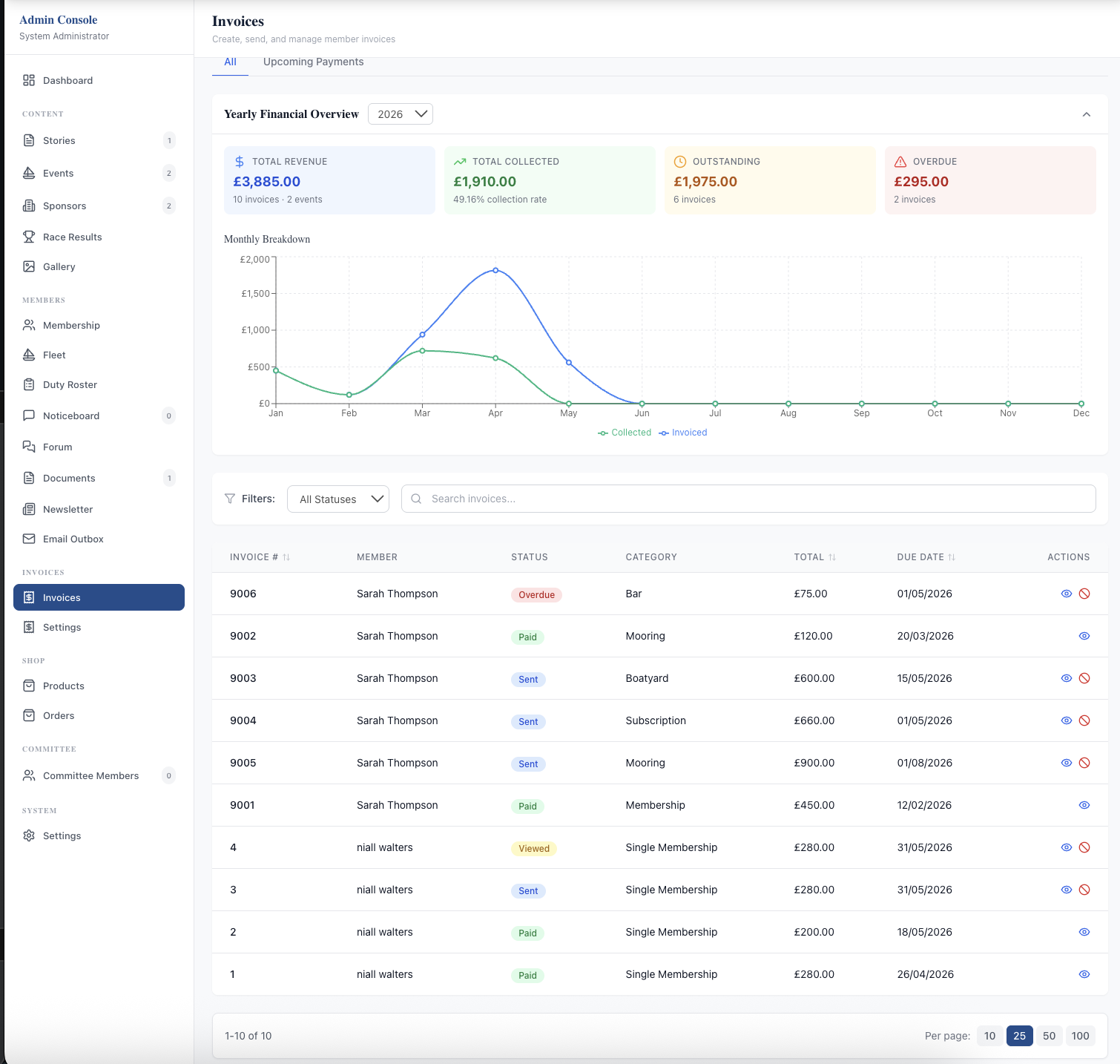
- Watch the yearly overview. The invoices screen shows total invoiced, collected, outstanding and overdue for the year, with a monthly breakdown, so you can see at a glance how renewals are going.
- Act on bank transfer notifications. When a member presses "I've paid" on an invoice, admins get a notification. Check your bank statement, then record the payment against the invoice so it shows as paid.
- Send a personal reminder where it helps. On top of the automatic reminders, you can send a reminder on any unpaid invoice from the admin console. For long-standing members, a phone call is often better still.
When a renewal is paid, whether by card or recorded by you, the member's cover is extended to the end of the new period. If they had been made inactive, paying puts them back to active.
After renewal season: close it off
- Look at who is still unpaid. Filter invoices by status to see what is still overdue. Decide, as a committee, who gets a final personal contact and who you treat as having left.
- Check the "cover expired, not billed" flags. If a member's cover has ended and there is no unpaid renewal invoice for them, admins are notified. Usually it means auto-renew was off for that member, or a draft was cancelled; either way it is worth a look.
- Cancel invoices for members who have left. That way your outstanding figures reflect money you actually expect.
- Export for your accounts. Invoices can be exported to CSV or Excel, and there is an income report by revenue category for the treasurer's report to the AGM. If your club uses Xero, invoices and payments can be sent there instead; see our Stripe and Xero guide.
- Write down what you'd change. Was 14 days enough notice? Would a grace period have helped? Adjust the settings now, while it is fresh, rather than next spring.
A note on handovers
Membership secretaries and treasurers change. Because the renewal settings live in the system rather than in someone's head, your successor inherits the same dates, prices and reminders you used. Give them the right admin permissions, walk them through this checklist once, and they are ready.
For the wider picture of how members, invoices and payments fit together, see member management and invoicing and payments. Treasurers may also want the treasurer's guide to online invoicing.
Get the checklist as a PDF
Enter your email and club name below to download this checklist as a printable PDF.
Like the read? See it running with your club's data — book a demo.