Get Yacht Clubs Manager running at your club. Book a 20-minute walkthrough.
It's Thursday night, the Saturday race is two days away, and your bow person has just dropped out. You post in the club WhatsApp group, the message scrolls away under a dozen others, and by Saturday morning you're asking people in the car park. Meanwhile there's a newer member who would love a ride and has no idea who to ask. A crew finder fixes both sides of that problem. This post explains how skippers and crew use the crew finder in Yacht Clubs Manager, step by step.
Crew finder is an option your club switches on. If you can see a Crew Finder card on your members area dashboard, it's available to you.
Two ways in: owner or crew
When you open Crew Finder you choose how you're using it today: I'm a Boat Owner (post crew requests and find crew for your boat) or I'm looking to Crew (find boats looking for crew and track your applications). Plenty of members are both at different times of the season, and you can switch between the two whenever you like.
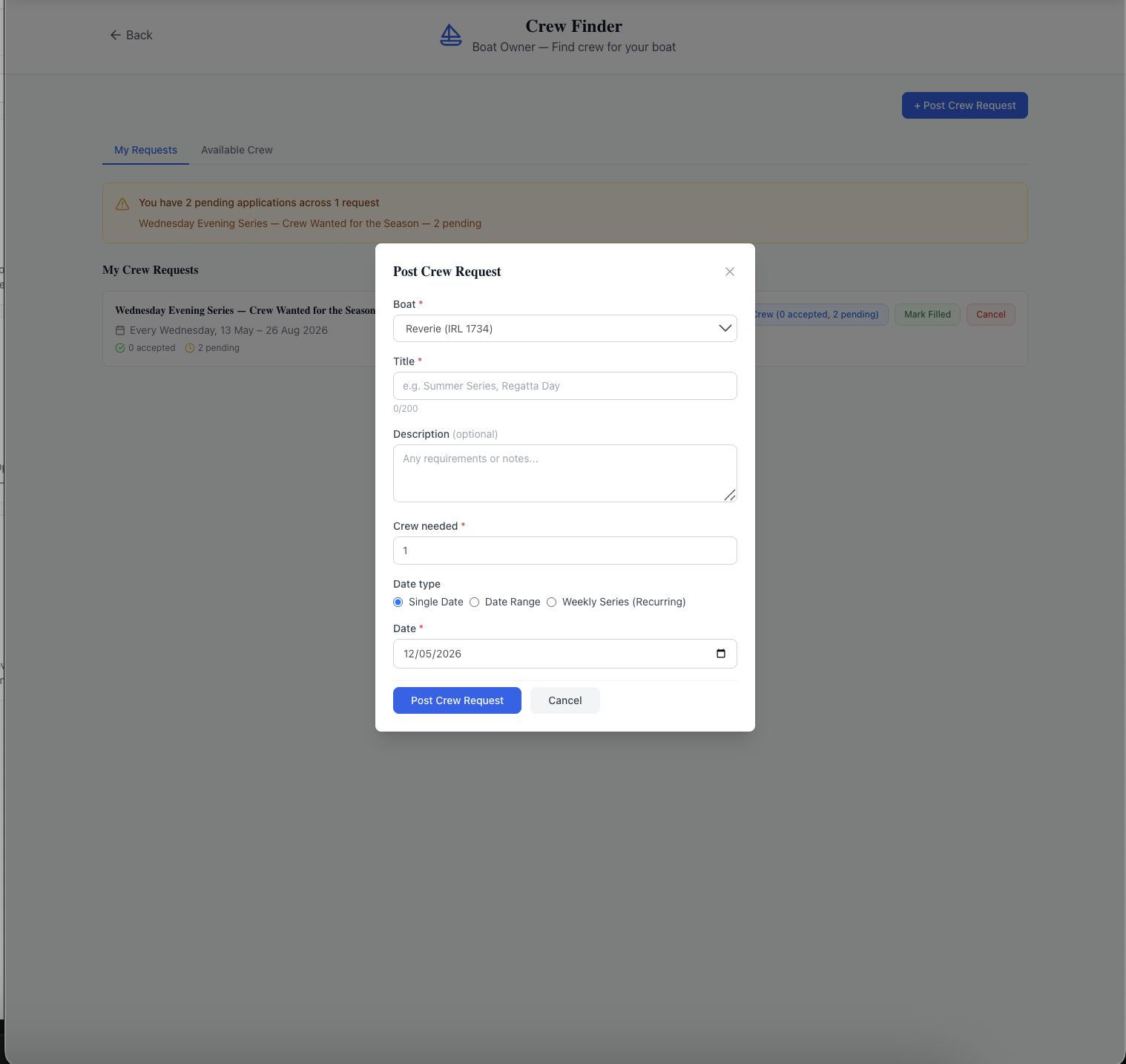
For skippers: posting a crew request
Your boat needs to be on your member profile before you can post for it, which is worth doing anyway (see keeping your club profile up to date). Then:
- Choose Post Crew Request and pick your boat.
- Give it a clear title, such as "Wednesday evening series" or "Coastal cruise, bank holiday weekend".
- Add a description: the position you need, the experience you're after, start times, anything crew should know.
- Say how many crew you need.
- Pick the date type: a single date, a date range for a multi-day regatta or passage, or a weekly series for a regular slot, such as every Wednesday between two dates.
The weekly series is the one that saves the most messages. Post your evening series once at the start of the season and it stays visible to crew for as long as it runs. The system won't let you post two open requests for the same boat with overlapping dates, which avoids confusing duplicates.
For skippers: accepting and declining
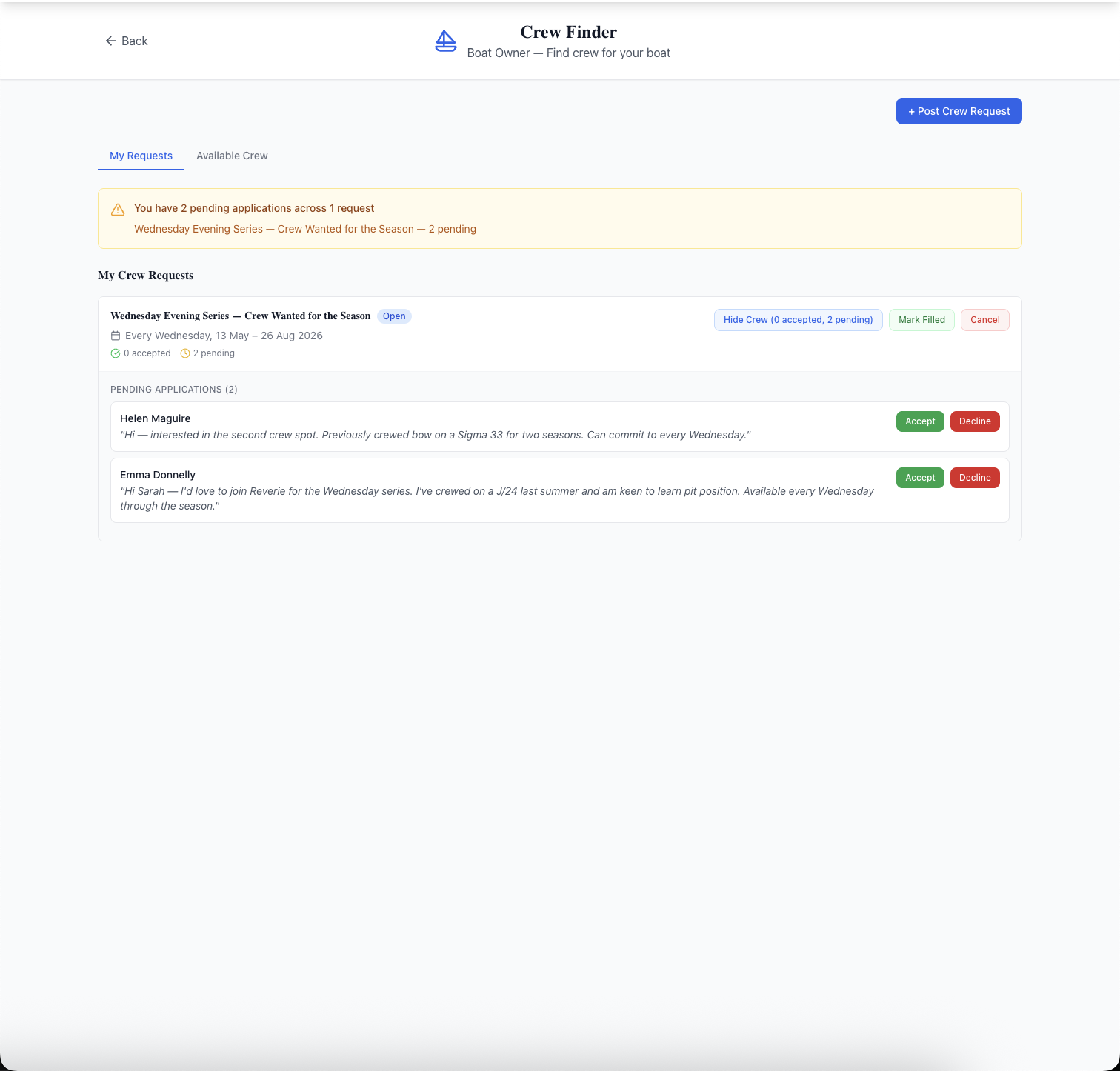
When someone applies you get an email and a notification in the members area. Your requests show how many applications are pending and how many places are already accepted. Open a request to read each applicant's note, then accept or decline. You can add a short note of your own with your answer, and the applicant is told either way.
Contact details are only shared once you accept, so members can apply without their phone number being posted to the whole club. When the number of accepted crew reaches the number you asked for, the request is marked filled automatically and stops taking new applications. You can also mark it filled yourself if you've sorted crew another way, raise the number of crew needed later, or cancel the request. If you cancel, applicants are notified, and anyone you'd already accepted gets an email so they don't turn up for a sail that isn't happening.
For crew: finding a boat
Choose I'm looking to Crew and the Find a Boat tab lists every open request: the boat and its class, the dates (including "every Saturday" style series), how many crew are needed and how many are already confirmed, who posted it, and the description. You can search by boat name or title and filter by date, which is handy when you know you're free on a particular weekend.
Your dashboard's Crew Finder card shows a badge when new requests have been posted since you last looked, so you don't need to check every day.
For crew: applying with a note
Press Apply and write a short note. This matters more than people think. The skipper is deciding who to trust on their boat, often without having met you. A good note covers:
- what you've sailed before, and in which positions;
- whether you can commit to every date (for a series) or only some;
- anything the skipper should know, such as being new to racing but keen to learn.
Your applications appear under My Applications, where you can filter by status (pending, accepted, declined and so on). If your plans change, withdraw a pending application, or use "Can no longer crew" on an accepted one. That frees the place so the skipper can find someone else, which is a lot better than not turning up.
Getting in touch, and what happens when a request ends
When a skipper accepts you, the email you receive includes their contact details, so you can sort out the practical bits directly: where the boat is kept, what time to be there, whether you need your own lifejacket. Crew finder can also send accepted crew reminder emails ahead of a sail, so it's worth keeping your email address up to date on your profile.
Requests tidy themselves up. When a request's end date passes, it expires, and any applications still waiting for an answer expire with it (the applicant gets a notification rather than being left wondering). Skippers don't need to remember to take old posts down.
Making crew finder work at your club
A crew finder only works if people use it, so a little encouragement goes a long way:
- Ask the regular skippers to post their series early. One weekly-series request at the start of the season gives new crew something to apply for straight away.
- Point newcomers to it. Mention it in the welcome email and at new-member evenings. It's the easiest way for someone who doesn't know anyone to get on the water.
- Keep WhatsApp for chat. When someone asks for crew in the group, reply with "post it on Crew Finder" and the habit forms quickly.
Crew finder is one of several things in the members area that make the club easier to belong to. You can read more on the crew finder feature page, or see how it fits alongside invoices, duties and documents in the member portal.
Like the read? See it running with your club's data — book a demo.